— Business Central Connector

Connect Plugnotes to Business Central. Natively.

Your field forms read and feed Business Central in real time. Customers, items, vendors, service calls, everything syncs after validation, cloud or on-premise, without development.

— Plugnotes & Business Central

Plugnotes is the missing piece
of your Microsoft ecosystem

Power Apps and Microsoft Forms are general-purpose tools. Plugnotes is a native field solution designed for mobile teams. Here's what changes concretely.

01
1 tool instead of 4
With Microsoft, you need SharePoint + Forms + Power Apps + Power Automate to cover what Plugnotes does alone. Fewer tools, fewer licenses, less maintenance.
02
Much greater flexibility than Forms
MS Forms is limited to data entry with basic validations. Plugnotes allows conditional fields, real-time calculations, alerts, and multi-step workflows — directly on the form, without Power Automate.
03
Native mobile application with full offline mode
Plugnotes is a native mobile app. Your teams can enter data without a connection — warehouse, construction site, white zone — and data syncs with Business Central as soon as they're back online. Power Apps requires a permanent connection.
04
Native features missing from Power Apps & Forms
All included in the Plugnotes license, without additional modules or Power Platform Premium licenses.
05
Data validated before entering Business Central
Create multi-step workflows with different forms, roles, and validation views. Data only goes into BC when it's reliable and complete — impossible to configure simply with Power Apps.
06
Multiple BC tables combined on a single form
Place multiple Business Central tables on a single form — even tables not linked in BC.
Example: a service report that simultaneously reads the Customer table, Equipment table, and BC Work Order table, all in a single field form.
— Use Cases

When Business Central needs data field

Service reports in Business Central

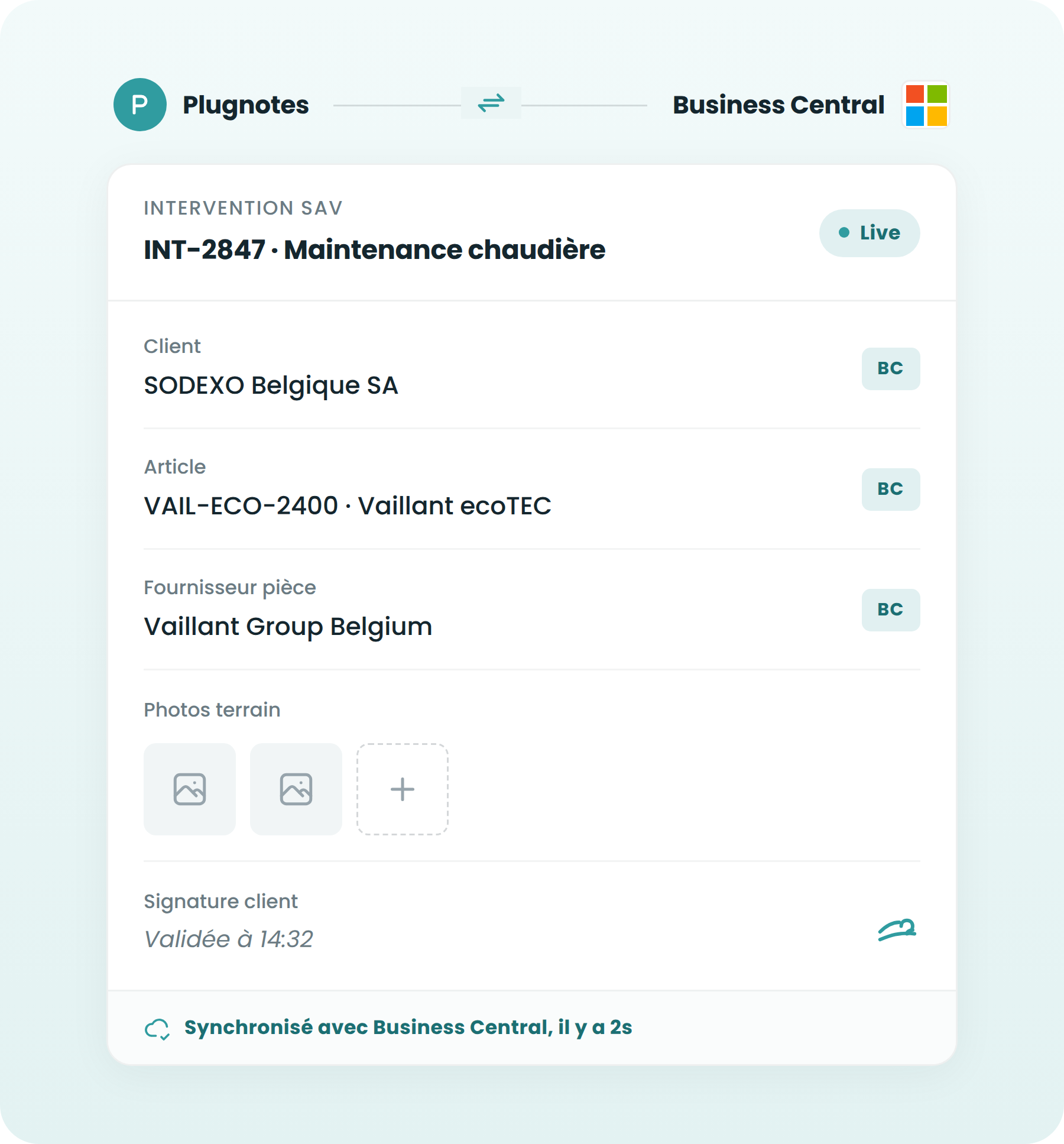
Your technician submits their report on mobile. A service report is created in BC with photos, signature, and customer data, without re-entry.

See use case →

Quality controls linked to BC items

Controls are linked to BC item references. Non-conformities create entries in BC quality management.

See use case →

Receiving anomalies linked to BC orders

The operator logs the anomaly and links it to the BC purchase order. A debit memo is automatically generated in Business Central.

See use case →

Production tracking to BC

Machine downtimes, non-conformities, and batch completions entered on a tablet are reported to the BC production module in real time.

See use case →

Field reports connected to BC projects

Your teams complete their field reports. Work orders and BC projects are updated automatically.

See use case →

Supplier data exchange without re-keying

Your suppliers submit their data via a Plugnotes link. It arrives directly in BC, without any intervention from your team. Your suppliers fill out Plugnotes forms via a link.

See use case →

— Benefits

What you gain by connecting Plugnotes to Business Central.

Flovity-product-tools-icon
Bidirectional synchronization : Plugnotes reads your BC customers, items, and vendors to populate your forms. Collected data is sent back to the correct Business Central tables after validation.
Flovity-product-tools-icon
Maintenance included in the license : connector updates are provided by Plugnotes. Compatible with BC cloud (SaaS) and on-premise. No technical intervention required on your part.
Flovity-product-tools-icon
No BC development required : the connection is configured from the Plugnotes interface. No modification to your Business Central instance, no AL development required.
Flovity-product-tools-icon
Mobile and offline: construction site, warehouse, remote area — your teams can input data without a network connection. Data is uploaded to BC upon validation when the connection is restored.
— How it works

Connect Plugnotes to Business Central in a few steps.

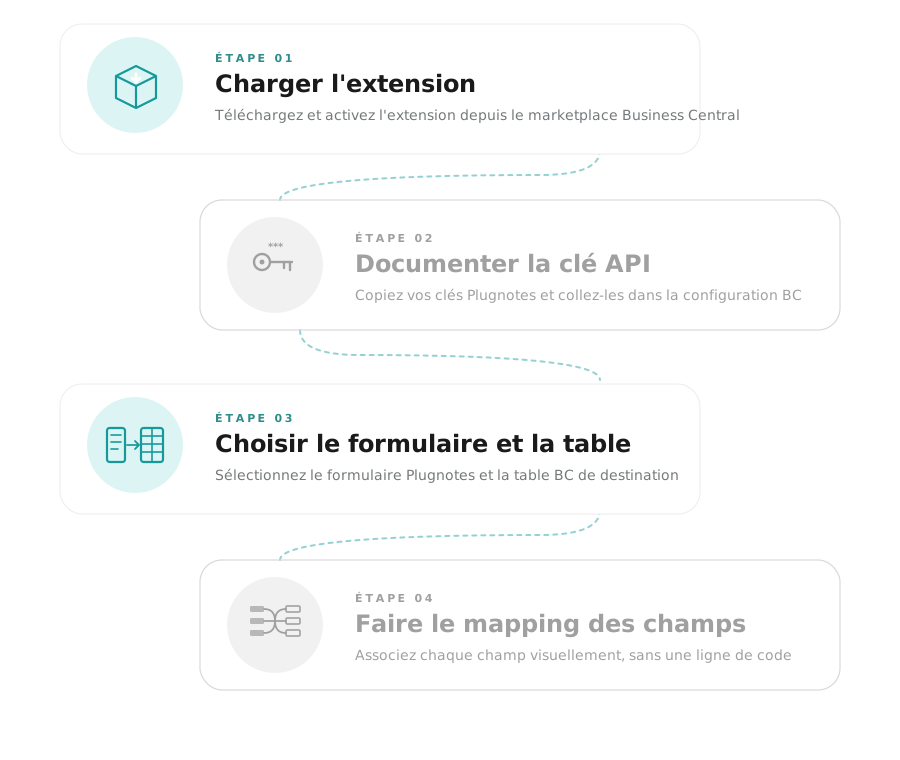
01
Install the Plugnotes extension

Download and activate the Plugnotes extension from the Business Central marketplace. The extension creates the communication channel between the two systems.

02
Enter the Plugnotes API key

From your Plugnotes workspace, copy your API keys (available in settings). Paste them into the Business Central extension configuration to authenticate the connection.

03
Choose the Plugnotes form and Business Central table

Select the relevant Plugnotes form and the destination Business Central table (customers, service orders, orders, items, depending on your needs).

04
Map the fields

Associate each field in your Plugnotes form with the corresponding field in the Business Central table. Mapping is done visually, without code.
— How it works

Connect Business Central to Plugnotes in a few steps.

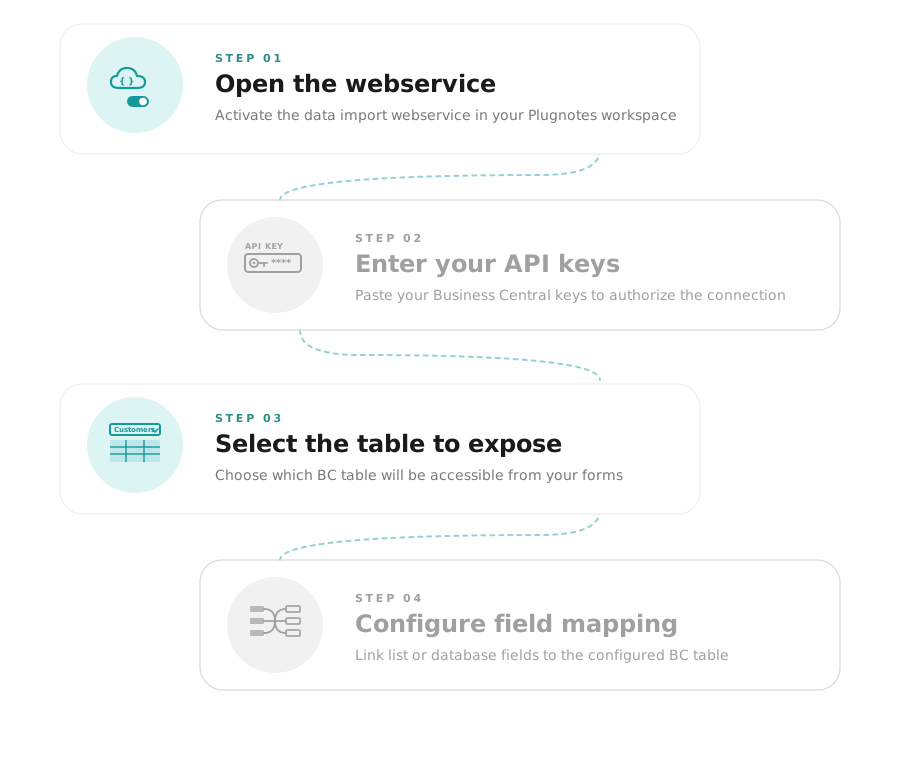
01
Activate the webservice in Plugnotes

In your Plugnotes workspace, activate the data import webservice. This generates a secure endpoint to which Business Central can send its data.

02
Enter Business Central API keys in Plugnotes

Retrieve your Business Central API keys (or service credentials) and enter them in the Plugnotes connection configuration to authorize reading your tables.

03
Select the Business Central table to expose

Choose which Business Central table will be accessible from your forms: customers, items, vendors, equipment, projects.

04
Configure field mapping

In the Plugnotes editor, link the "list" or "database" field to the configured Business Central table. Define which Business Central fields are displayed in the form and which are returned after submission.

— Partners

Deployed by experts
near you.

Business Central Integrators -  CERTIFIED

Business Central Integrators -  CERTIFIED

Business Central Integrators -  CERTIFIED

Business Central Integrators -  CERTIFIED

Let's talk about your project
Does your company use Business Central? Let's discuss your current projects and challenges and see how integration with Plugnotes can help you.
— Frequently Asked Questions

Everything you want to know about the Plugnotes & Business Central connection

Is the connector compatible with BC cloud and on-premise?

Yes. The Plugnotes connector for Business Central works with both BC cloud (Microsoft SaaS) and on-premise. Maintenance is included in your Plugnotes license.

Can BC data (customers, items) be read from a Plugnotes form?

Yes. Your forms connect directly to BC tables: customers, items, vendors, equipment. The operator selects a record, and the fields are automatically populated.

Is an AL developer or BC modification required?

No. The connector requires no AL development or modification to your Business Central instance. Everything is configured from the Plugnotes interface.

When does data arrive in Business Central?

Data is sent to BC upon form validation in Plugnotes. Reading BC databases is real-time within the form.

Ready to see Plugnotes in action on your field?

Create your first form in minutes, or let us show you how Plugnotes transforms your field operations into structured ERP data.